 Shrink
100% on-device · No account · No uploads
Your videos,
up to 90% smaller.
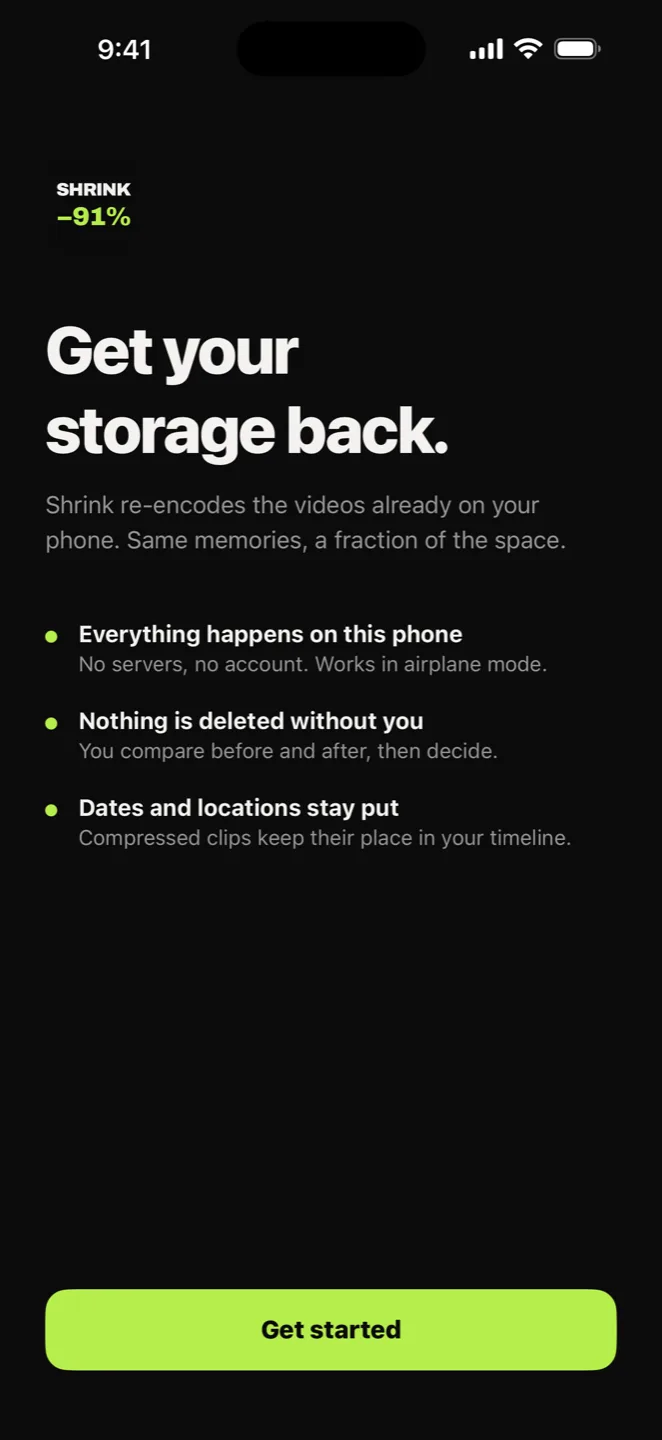
One minute of 4K can eat over 400 MB, and a few trips and birthdays later “iPhone Storage Full” is back. Shrink re-encodes your camera roll right on your phone — every memory kept, at a fraction of the size, without a single frame leaving the device.
Three videos every week, free, forever. No watermark, ever. Requires iOS 17 or later.
See it work
Thirty seconds, start to finish.
A 4K clip straight off the camera, the compressed copy held up against it, the batch running, and the gigabytes at the end. No narration and no slides — just the app doing the thing.
Silent, 30 seconds, and a 1.6 MB download — down from 12 MB. It seemed rude not to.
The numbers
Same clip. Same phone screen. A tenth of the space.
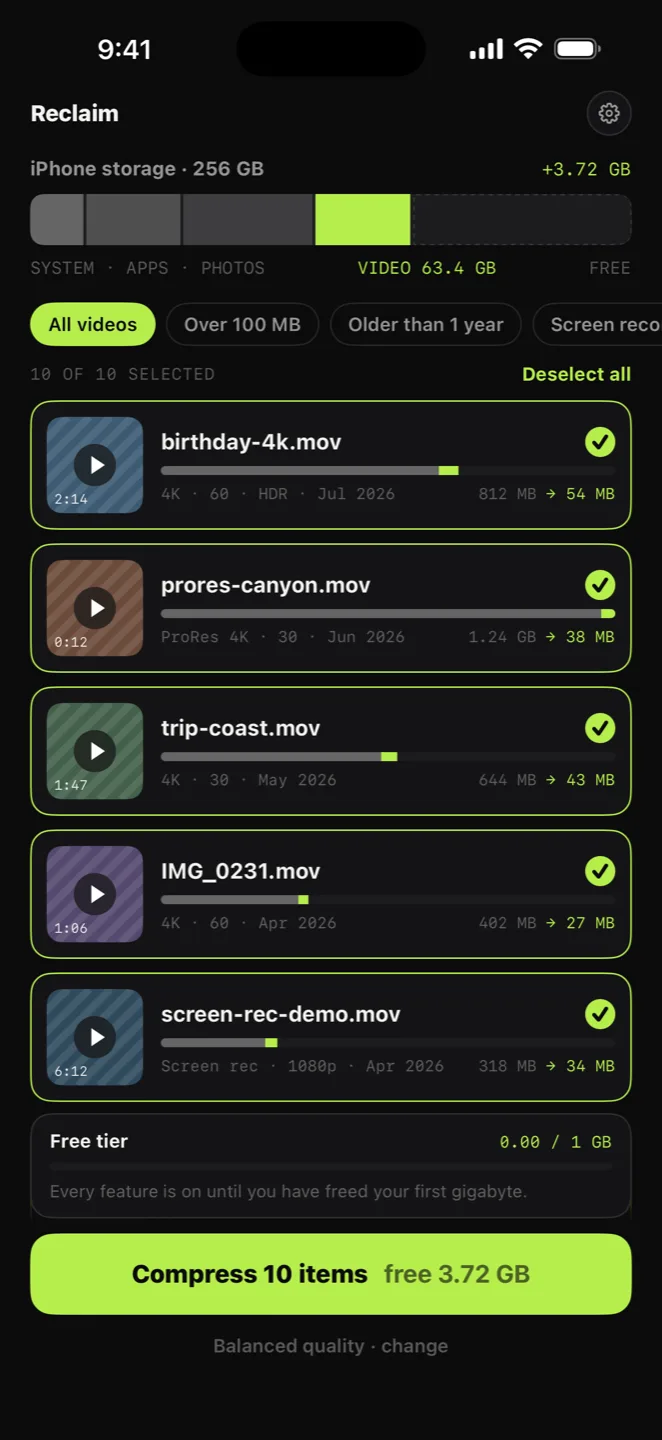
birthday-4k.mov
812 MB → 54 MB
−93% · 4K HDR
prores-canyon.mov
1.24 GB → 38 MB
−97% · ProRes 4K
trip-coast.mov
644 MB → 43 MB
−93% · 4K 30
screen-rec-demo.mov
318 MB → 34 MB
−89% · Screen rec
Real rows from the app, at the default Balanced quality. How much you get back depends on what you shot — a 4K HDR clip has far more to give than something already compressed. You see the exact figure for your own videos before you commit to anything.
Quality
See the quality before you keep it.
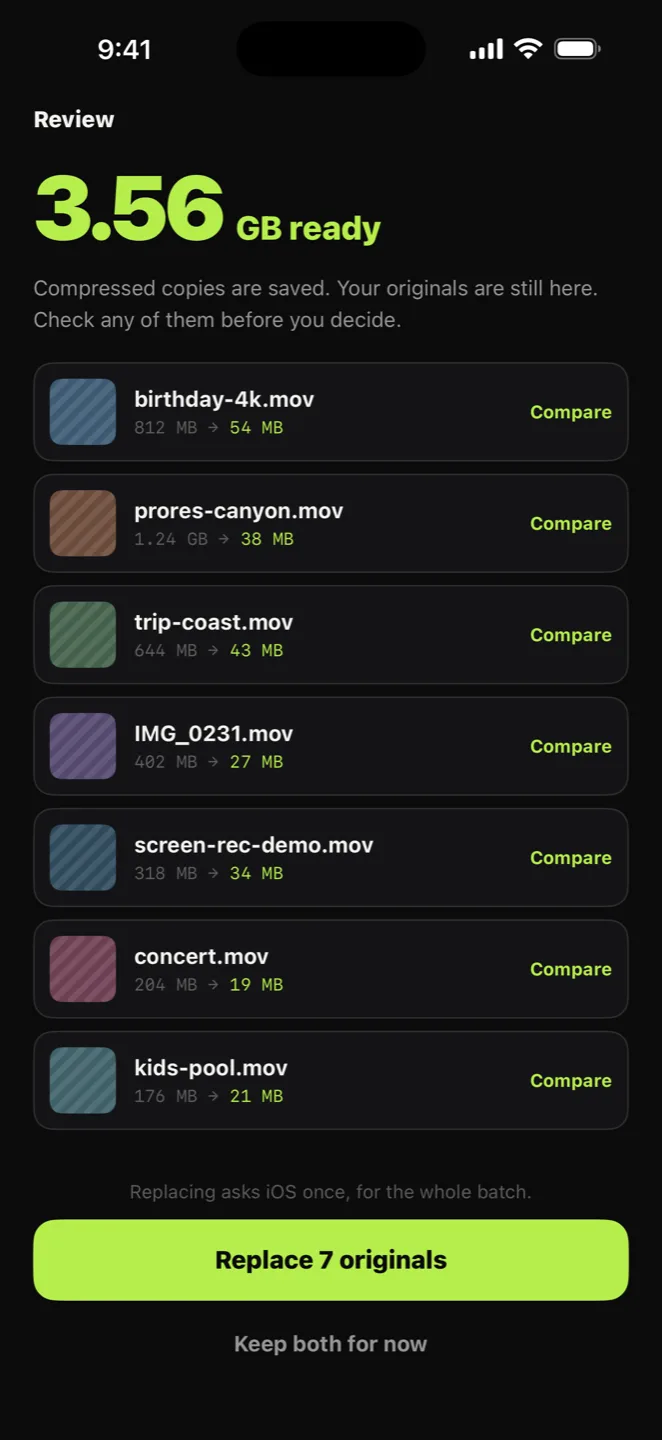
Compression you cannot inspect is compression you have to trust. Shrink puts the compressed clip next to the original and plays them in sync, so you decide with your own eyes rather than on our word.
- Side-by-side compare on every clip, with both players locked to the same frame.
- Nothing is replaced until you say so. Keep both if you want.
- Dates, locations and HDR survive the re-encode.
- Three levels — Space Saver, Balanced, High Quality — and you pick. Balanced is the default forever.
Batches
Your whole camera roll, in one run.
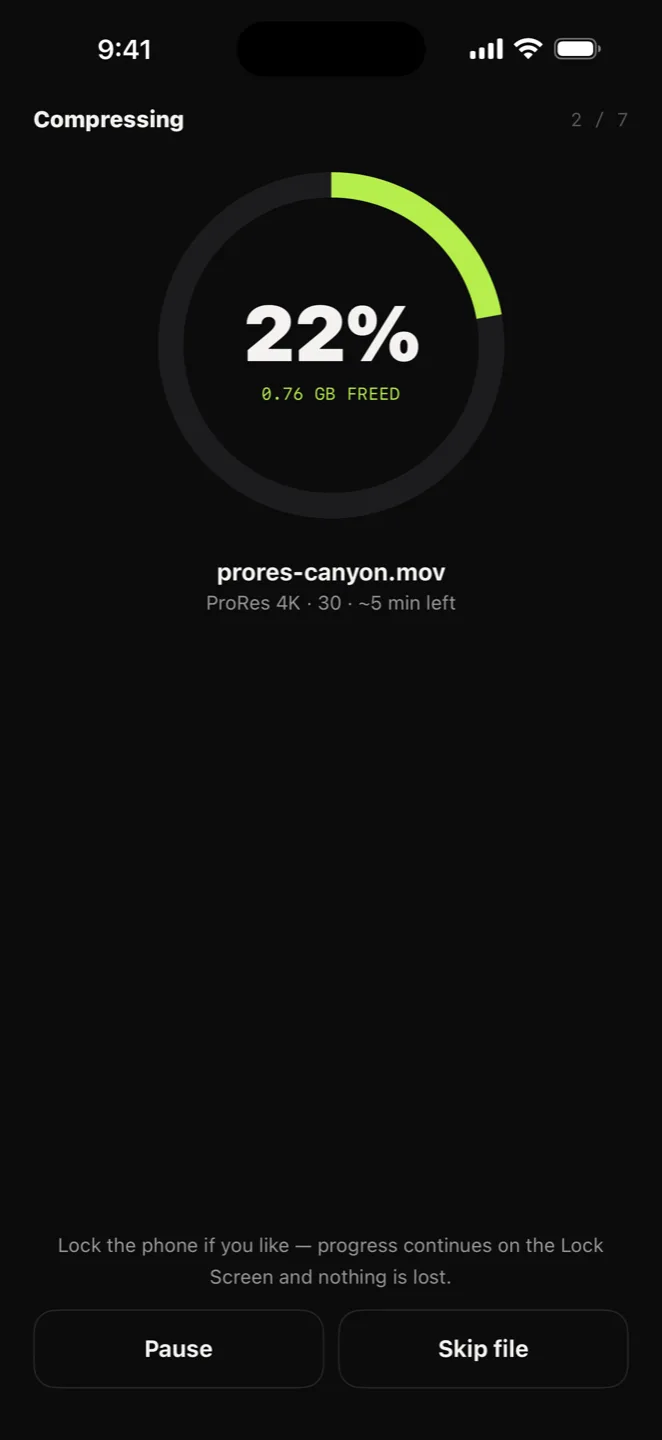
Most compressors make you feed them one clip at a time, which is why nobody ever actually clears their storage. Shrink queues the lot and works through it.
- Batch the entire roll — a running counter, a live percentage and a real time estimate.
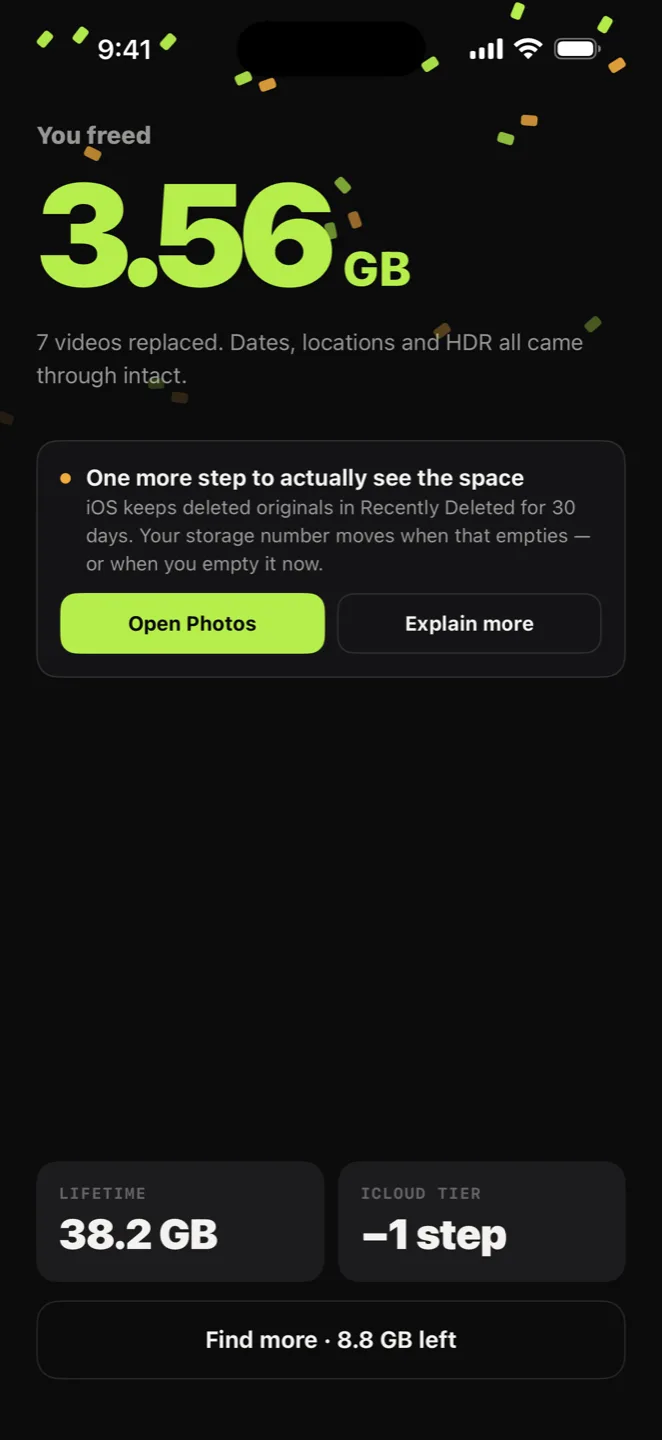
- Watch the gigabytes add up as each file lands.
- If your iPhone gets warm, Shrink pauses itself instead of pushing through and cooking the battery.
- Switch away and it keeps going for as long as iOS allows, then pauses cleanly and picks up exactly where it left off. Nothing is lost.
- 4K, HDR, ProRes and long clips handled — no failing at 99%.
Privacy
Your videos never leave your phone.
Shrink compresses them on the iPhone itself. No frame, thumbnail or file name is sent anywhere, and neither is the location stored in a video. The app does send usage events to Google Analytics for Firebase, and installs and purchases to Meta so we can measure our ads. The privacy policy describes both.
- Every frame is encoded on your device using Apple’s own hardware video encoder.
- No account, no sign-up, no email. You open the app and it works.
- No ads in the app. Meta gets your advertising identifier only if you allow tracking when the app asks.
- Works in airplane mode — on a plane, in a tunnel, anywhere.
- Your plan is verified on device, so nothing waits on a network.
Restraint
What it refuses to touch.
Most compressors flatten anything you hand them. Shrink skips the clips that would come out worse than they went in, and tells you why on the row instead of quietly damaging them.
Slo-mo
Re-encoding can flatten the slow-motion effect, leaving you with a clip that just plays oddly.
Cinematic
Compression would discard the depth and focus data — the whole point of the mode.
Live Photos
The photo and its video would come apart, and you would be left with neither.
Spatial video
The second eye would be lost, and with it every reason you shot it that way.
It is your library, so it stays your call: open any skipped clip and choose “Compress it anyway”. You will get the honest warning first, not a silent surprise afterwards.
Triage
Find the biggest wins first.
You do not need to compress everything. You need to compress the eight files quietly holding twelve gigabytes, and Shrink opens on exactly those.
- Your largest videos, sorted biggest first — the top of the list is the whole job.
- Filter to what pays: over 100 MB, older than a year, or screen recordings.
- Screen recordings are usually the easiest gigabyte you will ever get back.
- A storage bar that shows the win before you start, not after.
- Originals go to Recently Deleted, so there is always an undo.
Pricing
Like saving space? Pick a plan.
The core compressor is genuinely free — no watermark, no daily limit designed to make it useless. You get three videos every week, free, forever, and the count resets every Monday. If three a week is not enough, three fair ways to carry on, including one that cannot renew because it is not a subscription.
Free
$0
3 videos / week
Three videos every week, resetting each Monday. Not a trial that runs out. Background compression and alerts about new large videos come with a paid plan.
One-Month Pass
$2.99
Once
30 days of Pro that expires by itself. It never auto-renews, so there is nothing to remember to cancel. Buy another whenever you need it.
Monthly
$2.09
Per month
Always covered, always monitoring — Shrink watches for new large videos and quietly nudges you. Cancel any time in your Apple account.
Lifetime
$9.49
Once
One payment, every future version. No renewal, no upgrade fee, no second thoughts.
Prices are US dollars; Apple sets the equivalent in your local currency and handles every payment. No $8-a-week subscription traps, and no “free trial” that charges you on day three. A running batch always finishes, even if your Pass expires mid-job.
Questions
The things people ask first.
Will I be able to see the quality loss?
Do my original videos get deleted?
Why has my storage number not gone down yet?
Does anything get uploaded to a server?
Can I keep using my phone while it compresses?
Which iPhones does it work on?
What exactly do I get for free?
Is the One-Month Pass really not a subscription?
Storage full? Don’t delete
your memories — shrink them.
Get your gigabytes back without renting them from the cloud, and without handing your camera roll to anyone.
Three free videos every week. iPhone, iOS 17 or later.